How to Download YouTube Thumbnails on Desktop
- 1
Open YouTube
Go to youtube.com in your browser and find the video whose thumbnail you want to download.
- 2
Copy the video URL
Click on the video to open it. Copy the URL from the address bar - it looks like https://www.youtube.com/watch?v=...
- 3
Paste it here
Come back to this page and paste the URL into the input field above.
- 4
Click Download
Hit the Download button. Multiple resolutions will appear - pick the highest quality one (Max 1280×720).
- 5
Save the image
Click the Download button next to the resolution you want. The thumbnail will be saved directly to your computer.
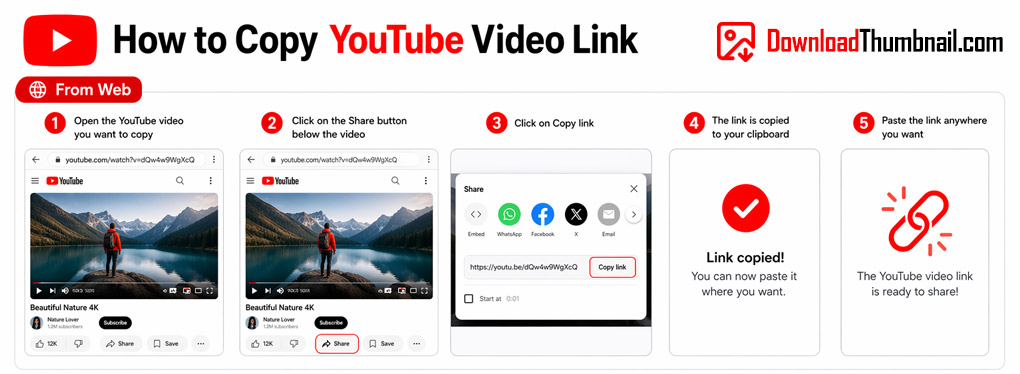
How to copy a YouTube video URL on desktop
How to Download YouTube Thumbnails on Mobile (Android & iPhone)
- 1
Open the YouTube app
Open YouTube on your Android or iPhone and navigate to the video you want.
- 2
Tap Share → Copy Link
Tap the Share button (arrow icon) below the video and select Copy Link.
- 3
Open your browser
Open Chrome, Safari, or any browser and go to this page.
- 4
Paste & Download
Tap inside the input box, paste the link, and tap Download. The thumbnail images will appear.
- 5
Save to your gallery
Tap the Download button on the resolution you want. On iPhone, tap and hold the image and choose Add to Photos.
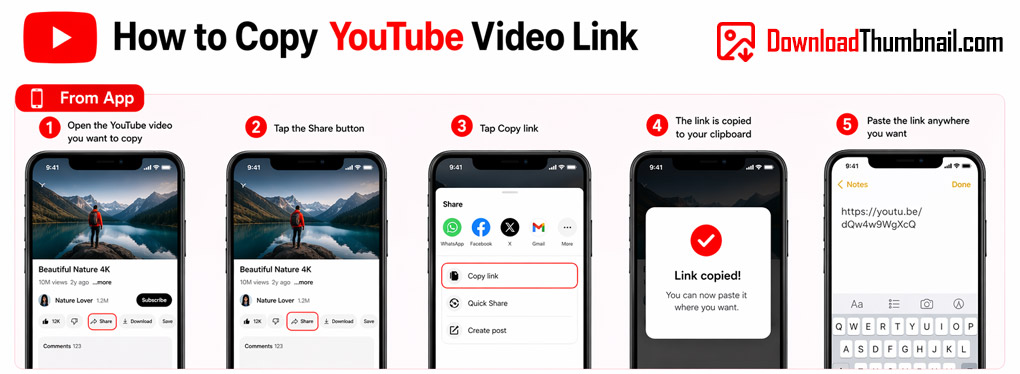
How to copy a YouTube link on mobile to download the thumbnail
Best Online YouTube Thumbnail Downloader
Our YouTube thumbnail downloader lets you save any YouTube video thumbnail in all available resolutions - from the maximum HD quality (1280×720) all the way down to the default small size. Every YouTube video has a cover image chosen by its creator; our tool fetches all of them instantly so you can pick the exact resolution you need. Whether you are a content creator looking for inspiration, a marketer analyzing competitors, or simply saving a visual you love, our tool makes it completely free and effortless - no login, no extension, no app required.
Where to Save YouTube Thumbnail Images?
You can save YouTube thumbnails to any device - Windows PC, Mac, iPhone, iPad, Android phone, or a USB drive. On desktop, right-click the downloaded image and choose "Save as" to pick your destination folder. On mobile, tap and hold the image and select "Add to Photos" (iPhone) or "Download image" (Android). Thumbnails are saved as high-quality JPEG files, ready to use in any video editor, design tool, or presentation.
Frequently Asked Questions
Can I download thumbnails from YouTube Shorts?
Yes. Just paste the YouTube Shorts URL (youtube.com/shorts/...) and our tool will extract the cover image automatically.
Are downloaded YouTube thumbnails free to use?
The thumbnail image belongs to the video's creator or rights holder. Downloading it for personal use is generally fine, but always get permission before using it commercially.
Why does the Max resolution thumbnail sometimes not load?
Not every YouTube video has a maxresdefault.jpg uploaded. If it appears broken, use the SD or HQ resolution instead - those are always available.
Do I need to create an account?
No account, login, or extension is required. Just paste the URL and download.